CSV Import
CSV Import lets you load account balances from a CSV file. The importer reads your export, groups rows by account name, keeps the latest balance for each account, and presents them for classification in the Setup Panel.
Best for: users who want a one-time Monarch data snapshot without running the MCP server, who use other apps with compatible exports, or who want full control over account classification.
Getting the CSV
Section titled “Getting the CSV”Monarch Money users: Open the Accounts page and click Download CSV. The export contains a day-by-day historical record of every account’s balance — from the earliest data Monarch has for you through today.
Other apps: If your app can export to CSV with columns named Date, Account, and Balance, you can import it directly. If the column names differ, rename them in a spreadsheet before importing.
Required Format
Section titled “Required Format”Your CSV must have these three columns in the header row:
| Column | Description | Example |
|---|---|---|
Date |
Balance snapshot date (YYYY-MM-DD) | 2026-01-15 |
Account |
Name of the account | Vanguard Roth IRA |
Balance |
Account balance — positive for assets, negative for debts | 45230.50 |
A sample CSV is available at docs/assets/sample-accounts.csv in the repository.
How It Works
Section titled “How It Works”The importer:
- Reads the CSV header to find
Date,Account, andBalancecolumns - Groups rows by
Accountname - Keeps the latest
Date’sBalancefor each account - Presents the parsed accounts for you to classify by category (Cash, Taxable, Traditional IRA, Roth, etc.) and owner
How it works: The importer reads the CSV, groups rows by Account name, and keeps the latest Date’s Balance for each account. A sample CSV is available at docs/assets/sample-accounts.csv.
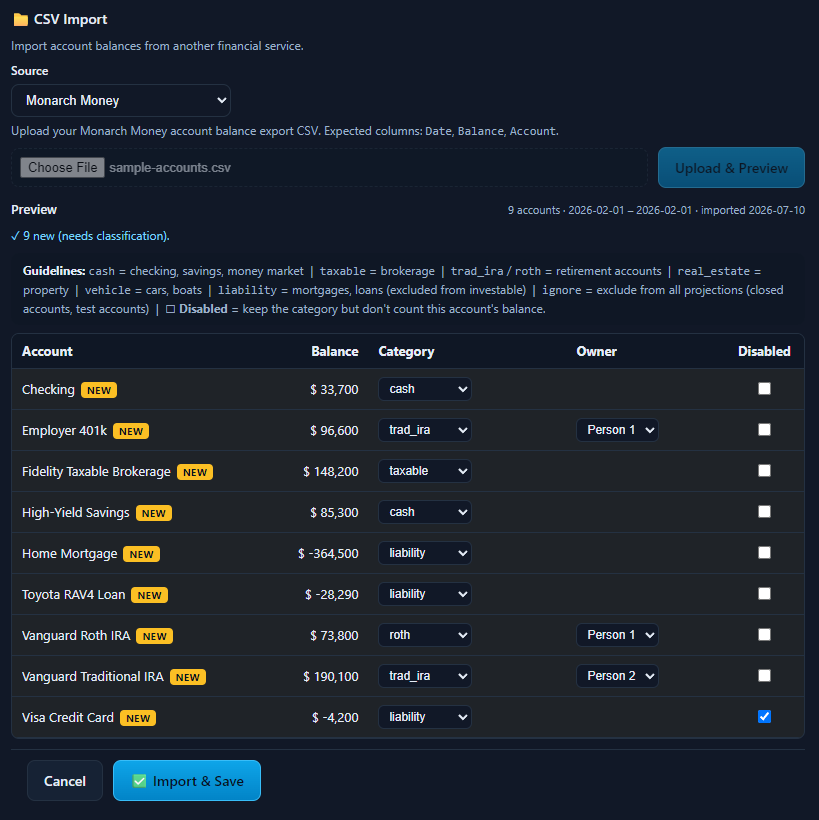
To use: In the Setup Panel’s Accounts tab, select CSV Import as your data source, upload your CSV file, review the parsed accounts, and click Import & Save.
How often to re-import?
As often as you export from your source — monthly or quarterly. Re-importing preserves your previous classifications, so new imports only need attention for new or changed accounts.
How balance updates work: The Date column in the CSV is used to pick the latest snapshot for each account — the date itself is then discarded. The resulting balances are used as the starting point at your scenario’s configured start_year, regardless of when they were captured. For best accuracy, set start_year close to the date of your latest CSV data.